The article How to fix the support.apple.com/iphone/restore error first appeared in the online magazine BASIC thinking. With our newsletter UPDATE you can start the day well informed every morning.
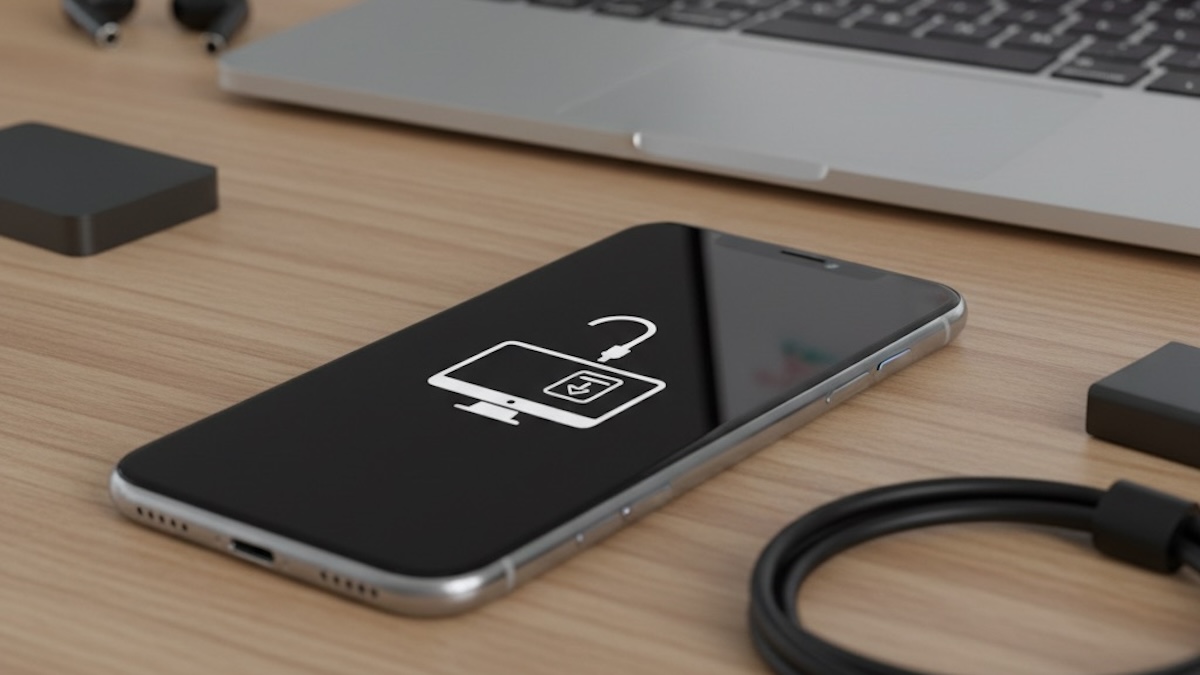
Suddenly a black screen appears on the iPhone with a cable symbol and the message support.apple.com/iphone/restore. The device can no longer be started normally, even a restart leads to the same display again and again.
In practice, this notice often appears after an iOS update, a system crash or, in rare cases, a hardware problem. The good news: In most situations, the iPhone restore without data lossas long as the correct steps are followed.
In order to take the right action, it is first important to understand what is behind the support.apple.com/iphone/restore notice and what it specifically means for your iPhone.
What does Support Apple.com iPhone Restore mean?
This screen indicates that your iPhone is in the so-called Recovery Mode located. iOS failed to load fully, prompting the system to request repair via a computer or other Apple device.
Typical triggers are:
- A failed iOS update
- An interrupted data transfer during the update
- Corrupted system files
- Not enough free space during update
- Unstable USB connections or outdated software on the computer
Exit restore mode on iPhone
Before deleting data or connecting cables, you should try a force restart. This often causes the iPhone to exit recovery mode immediately.
A force restart interrupts running system processes and completely restarts the iPhone. No data will be deleted.
iPhone 8, X, XS, 11, 12, 13, 14, 15 and newer
- Briefly press and release the volume up button
- Briefly press and release the volume down button
- Press and hold the side button until the Apple logo appears
The iPhone 7 and iPhone 7 Plus
- Press and hold the volume down button + side button at the same time until the Apple logo appears
iPhone 6s, 6s Plus and older
- Press and hold the Home button + Standby button at the same time until the Apple logo appears
If a simple reboot isn’t enough, a computer is needed. The iPhone can be updated or restored via the official Finder or iTunes. After connecting the iPhone to the computer, the following message should appear: “[Dein Gerätename] has a problem and needs to be updated or restored.” Typically, two options will then be displayed:
- Update (recommended): When updating, the system tries to reinstall iOS without deleting your data. This option should always be chosen first.
- Restore: The restore completely resets the iPhone. All data will be deleted unless previously backed up. This option only makes sense if an update has failed several times.
In the dialog that appears, select Update. Downloading and reinstalling iOS can 15-30 minutes last.
If the update does not work, you can either repeat the process described above or restore the iPhone. This option completely wipes the device. You should only choose it if a backup is available or no other solution works.
If you want to restore your data after restoring your iPhone, you can try one of the following two methods:
Restore from iCloud:
- Sign in with your Apple ID
- Selecting an available iCloud backup
- Stable WiFi connection required
- Apps and photos load in the background
Restore from computer:
- Open Finder or Apple device app
- Select “Restore Backup”.
- For encrypted backups: have your password ready
support.apple.com/iphone/restore Fix errors with Tenorshare Reiboot
In situations where neither a force restart nor the computer can exit recovery mode specialized software like ReiBoot represent an additional option. Such tools specifically access the iOS Control Panel and can often exit recovery mode with one click.
Why choose ReiBoot?
- For free with just one click Restore mode out of here
- iTunes error like 4013 or 1110 and others resolve immediately
- Fix over 150 iOS problems
- Backup and restore data without iTunes or iCloud
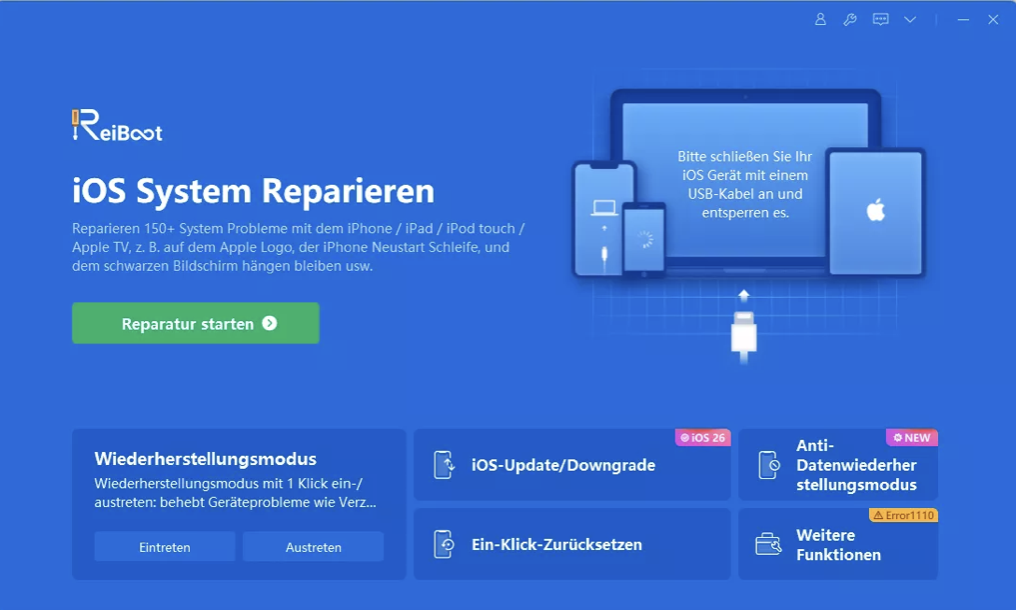
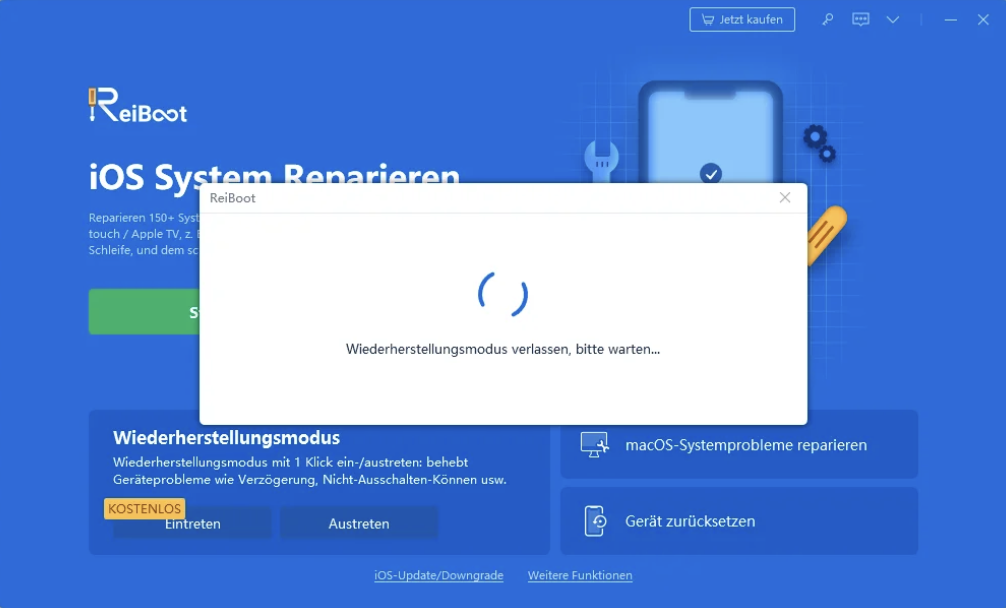
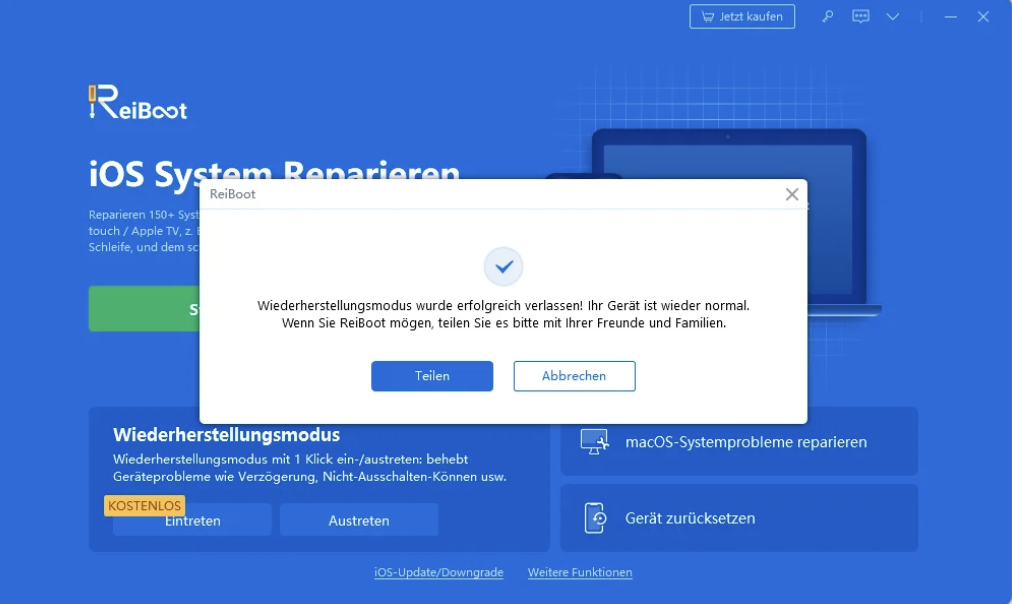
One of ReiBoot’s core features is the controlled exit from recovery mode without reinstalling iOS.
- Install ReiBoot on a Mac or Windows PC
- Connect iPhone to the computer using a USB cable
- Start the program and select the recognized device

- Execute function to exit recovery mode

- The iPhone then restarts automatically

Advanced iOS system repair with ReiBoot
Beyond just exiting recovery mode, ReiBoot offers additional features to repair common iOS system errors. These are particularly relevant if the iPhone is recognized but no longer starts correctly.
Typical system repair use cases are:
- iPhone gets stuck on Apple logo
- Infinite loops when restarting
- Black screen or frozen display
- iOS stops responding after an update
- Switching between recovery mode and normal startup without success.
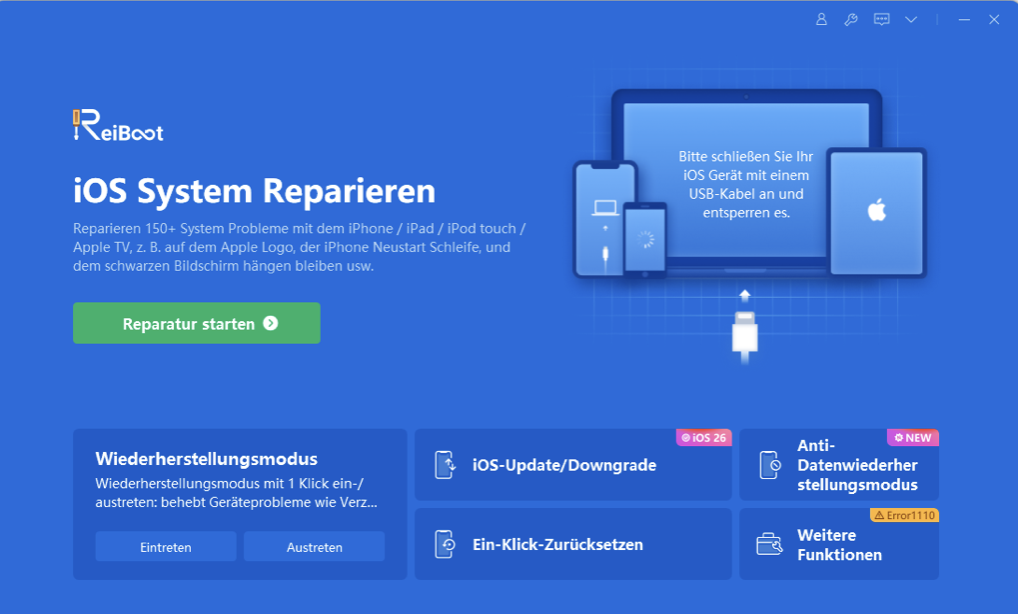
- Open the program and click Start Repair. Then connect your iPhone to the computer using a USB cable.

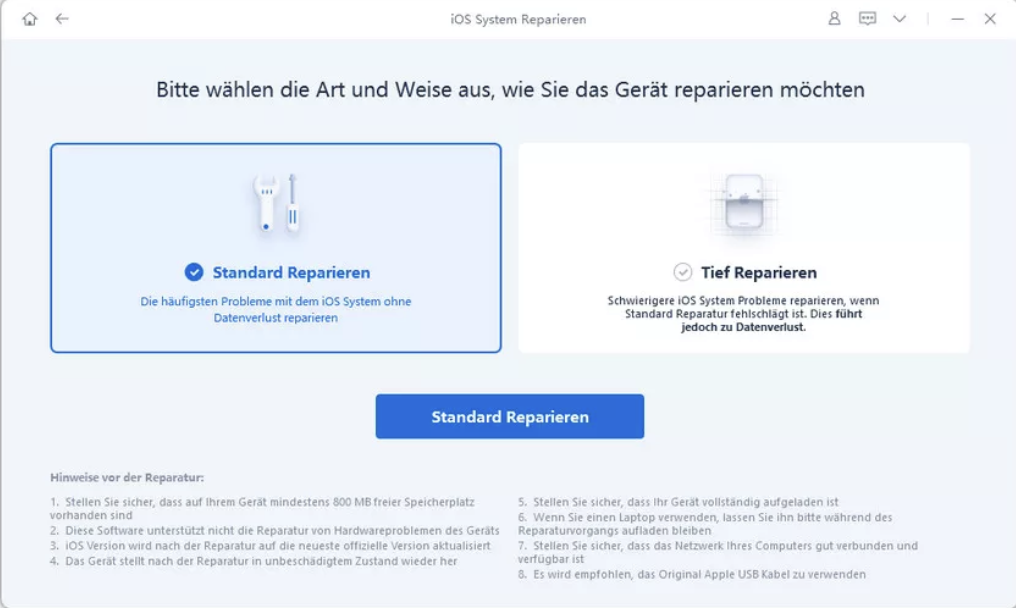
- Once ReiBoot detects your iPhone, select the Standard Repair option and click Next to prepare the repair process.

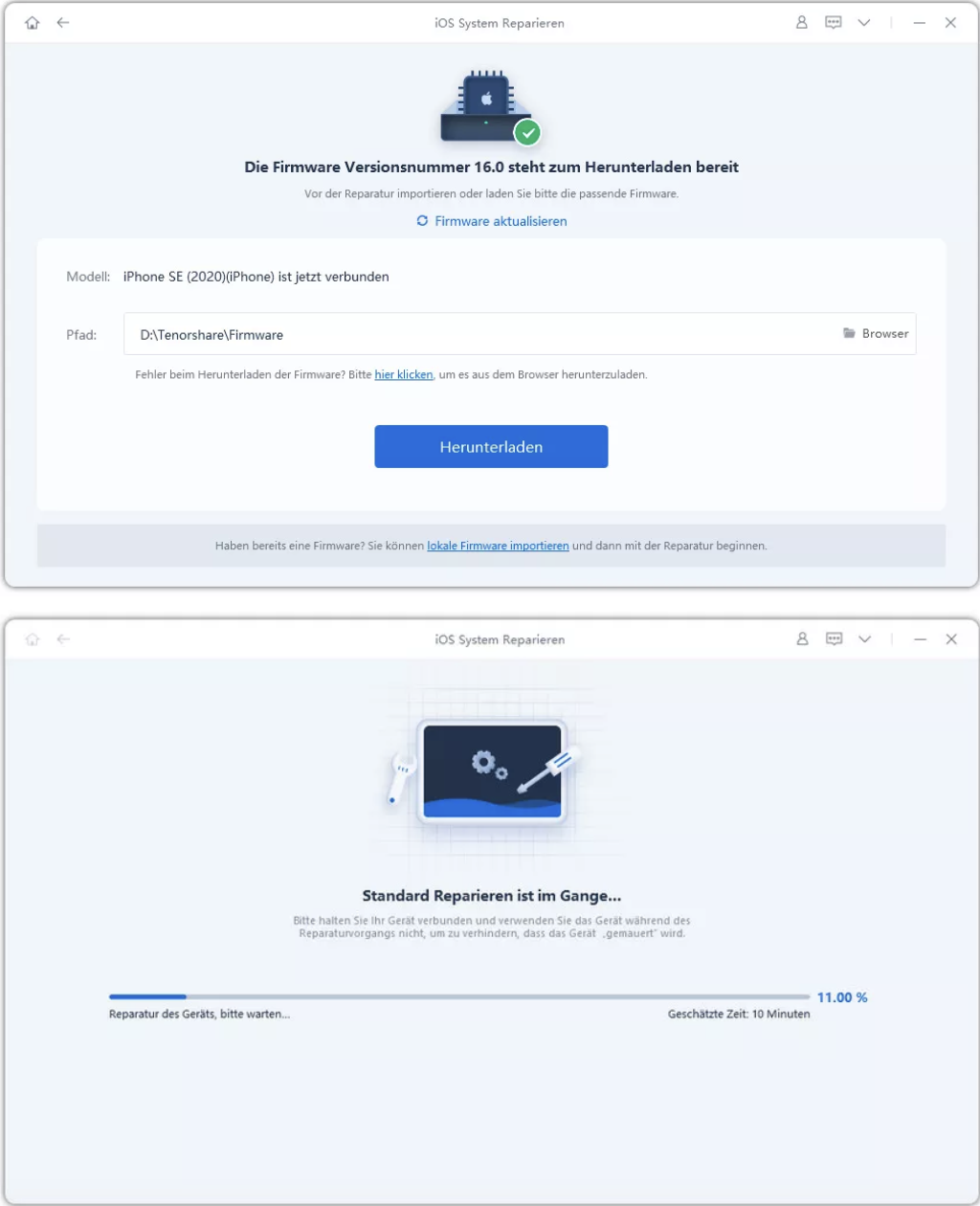
- ReiBoot automatically detects the appropriate iOS system and prompts you to download the required firmware package. Click Download and wait for the process to complete.

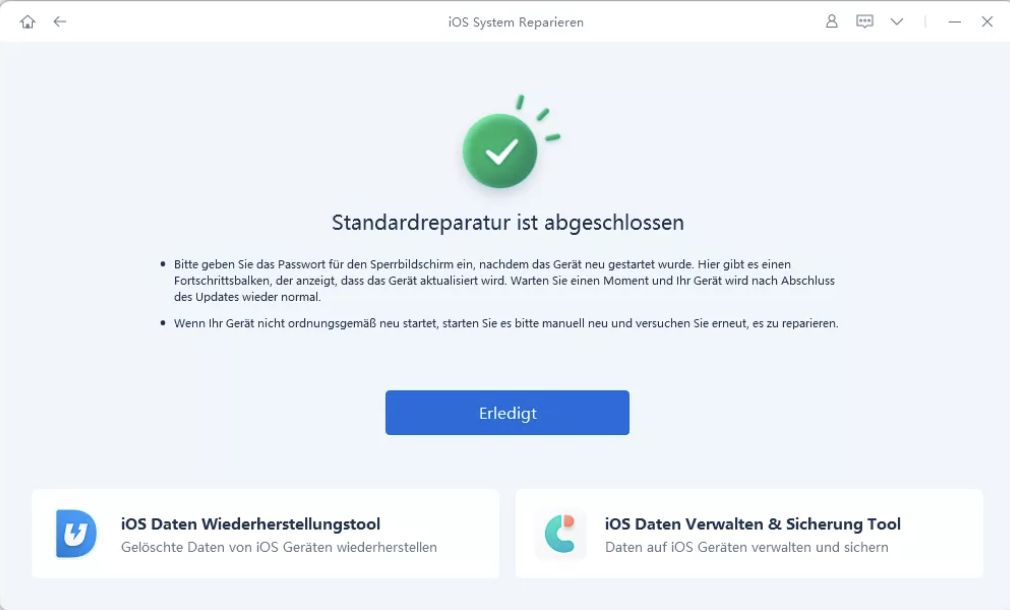
- After downloading, ReiBoot will start repairing the iOS system. This process may take a few minutes. Once completed, the iPhone will automatically restart and the system will be repaired successfully.

What to do if error messages appear?
Sometimes the process stops with codes like error 4013 or error 9. Note in this case following checklist:
- Be sure to use an original Apple cable or an MFi-certified cable.
- Connect the device directly to the computer, not via a hub.
- Make sure your computer has the latest version of macOS, Windows, Finder, Apple Device App, or iTunes installed.
Conclusion:
If your iPhone keeps returning to the support.apple.com/iphone/restore screen despite multiple attempts and different cables, it most likely has a hardware problem. In this case, you should contact Apple Support or an Apple Authorized Service Provider to have the device repaired.
The post How to fix the support.apple.com/iphone/restore error appeared first on BASIC thinking. Follow us too Google News and Flipboard or subscribe to our newsletter UPDATE.
As a Tech Industry expert, there are a few steps that can be taken to fix the support.apple.com/iphone/restore error:
1. Check internet connection: Ensure that the device has a stable internet connection as the error may be caused by a poor or unstable connection.
2. Update iTunes: Make sure that iTunes is updated to the latest version as an outdated version may cause errors during the restore process.
3. Restart the device: Sometimes, simply restarting the iPhone can resolve the error as it can clear out any temporary glitches or bugs that may be causing the issue.
4. Try a different USB port or cable: The error may be caused by a faulty USB port or cable, so try using a different port or cable to see if that resolves the issue.
5. Put the device in recovery mode: If the error persists, try putting the iPhone into recovery mode and then attempt the restore process again.
6. Contact Apple Support: If none of the above steps work, it may be necessary to contact Apple Support for further assistance and troubleshooting.
By following these steps, the support.apple.com/iphone/restore error should hopefully be resolved and the device restored successfully.
Credits